Overview
Before you start
You need a delightful OS account with access to Calendar Settings and a Zoom account that can create meetings. Your Zoom plan controls meeting limits such as maximum duration and participant count.
One connection
Connect a Zoom identity once, then make it available in one or more Ventures.
Per-event choice
Each event type chooses its own location and Zoom owner.
Unique links
Every booked Zoom meeting receives its own join link.
Step 1
Connect your Zoom account
Calendar Settings is the main place to connect and manage Zoom for scheduling.
- 01
Open Calendar Settings
In delightful OS, open Operations → Calendar, select My Availability, then choose the Calendar Settings tab.
- 02
Connect your Zoom account
In the Zoom section, select Connect new Zoom account. Sign in to Zoom and approve the requested permissions.
- 03
Return to delightful OS
After authorization, you will return to delightful OS. Your Zoom identity appears as a connected account.

Step 2
Choose where the account can be used
A connected Zoom account is global to your delightful OS user, but it is only available for event types in the Ventures you assign it to.
Venture access does not share your Zoom login
It only controls where your connected account appears as a scheduling option. Other users do not receive your Zoom credentials.
- Use in [Venture] makes the account available there.
- Remove from this Venture hides it from that Venture but keeps the Zoom connection active elsewhere.
- Manage Venture access lets you update several assignments from the Conferencing Accounts page.
Step 3
Use Zoom in an event type
Open Operations → Calendar → Event Types. Create or edit an event type, choose Zoom in the Location section, then select the Zoom owner.
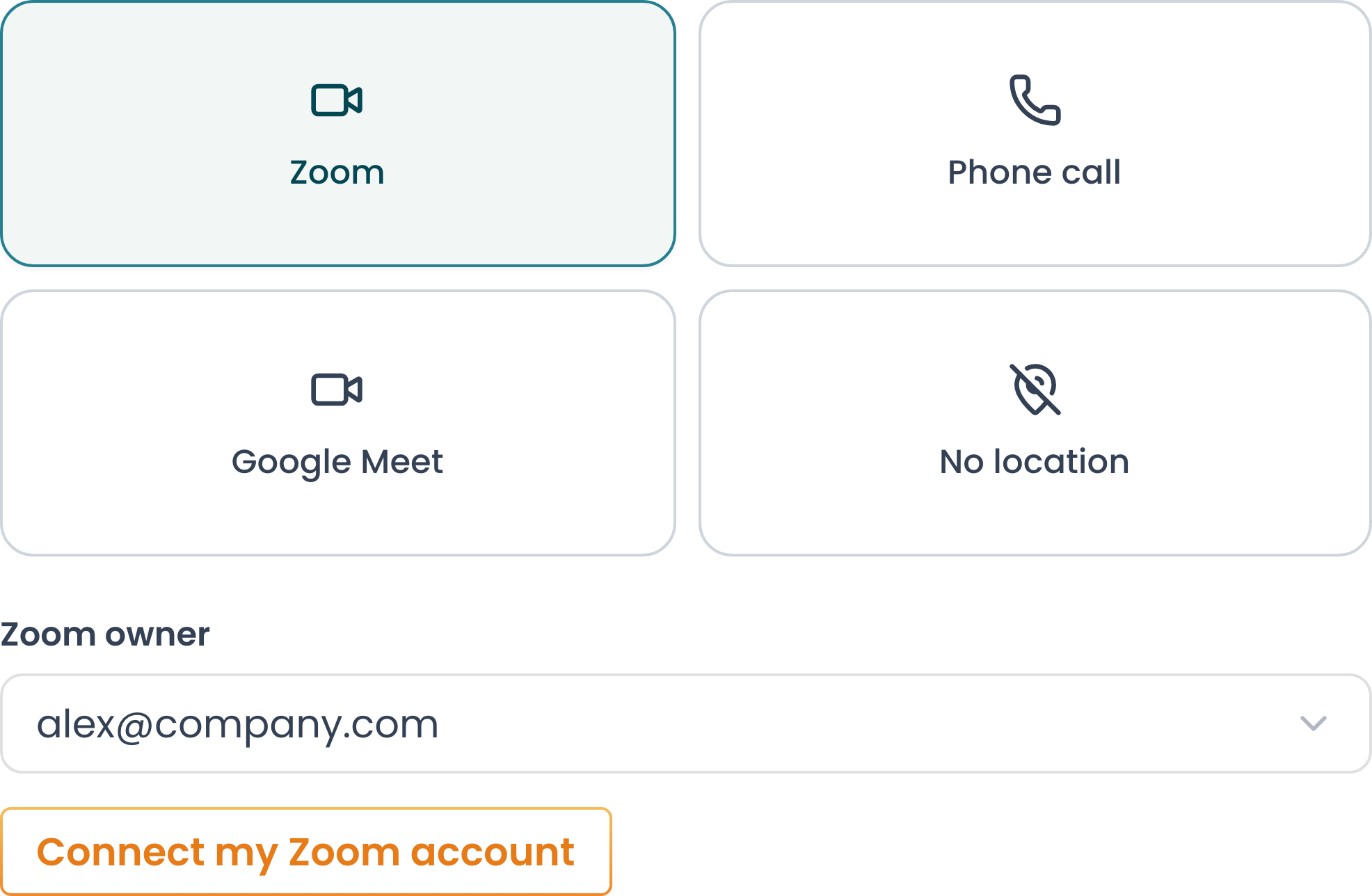
If no account is available, use Connect my Zoom account from the event type. After authorization, return to the event type and select the account.
What happens next
Unique links for bookings and reschedules
New booking
delightful OS creates a Zoom meeting and adds its unique join link to the booking and calendar invitation.
Reschedule
The existing meeting is updated to the new time. If you change the location, delightful OS removes the former conference before creating the new one.
Existing bookings keep their recorded meeting information. Disconnecting Zoom prevents delightful OS from creating or updating future Zoom meetings through that authorization.
Account management
Reconnect, remove, or disconnect
Reconnect
Use when the account needs attention. Authorize the same Zoom identity to restore access.
Remove from this Venture
Stops new event types in that Venture from selecting the account. The Zoom authorization remains active.
Disconnect Zoom Account
Revokes delightful OS access and removes the account from every Venture. You can connect it again later.
You can also remove delightful OS from the Zoom App Marketplace under Manage → Added Apps. Zoom will notify delightful OS and revoke the connection.
Privacy
Permissions and data use
delightful OS requests the Zoom permissions required to identify the connected user and create, update, or delete meetings used by your event types. We do not use the integration to access meeting recordings or chat content.
For retention, deletion, and data-subject rights, read our Privacy Policy.
Help
Troubleshooting
My Zoom account says “Needs attention.”
Select Reconnect and authorize the same Zoom identity. Reconnecting refreshes access without changing which Ventures can use the account.
Zoom is not available when I edit an event type.
Open Calendar Settings and confirm the Zoom account is assigned to the same Venture as the event type.
A booking did not get a Zoom link.
Confirm Zoom is selected as the event type location and that a connected Zoom owner is selected. Then check whether the account needs to be reconnected.
I removed the app in Zoom Marketplace.
Zoom revokes the authorization. Connect Zoom again in delightful OS before creating new Zoom meetings.
Still need help?
Tell us which Venture and Zoom account you are using, plus the step where you got stuck.